 Philippines · Provider
PLDT Router Login Guide (Home Fiber)
- Login URL
http://192.168.1.1- Default username
- Printed on the modem label
- Default password
- Printed on the modem label (different from the WiFi password)
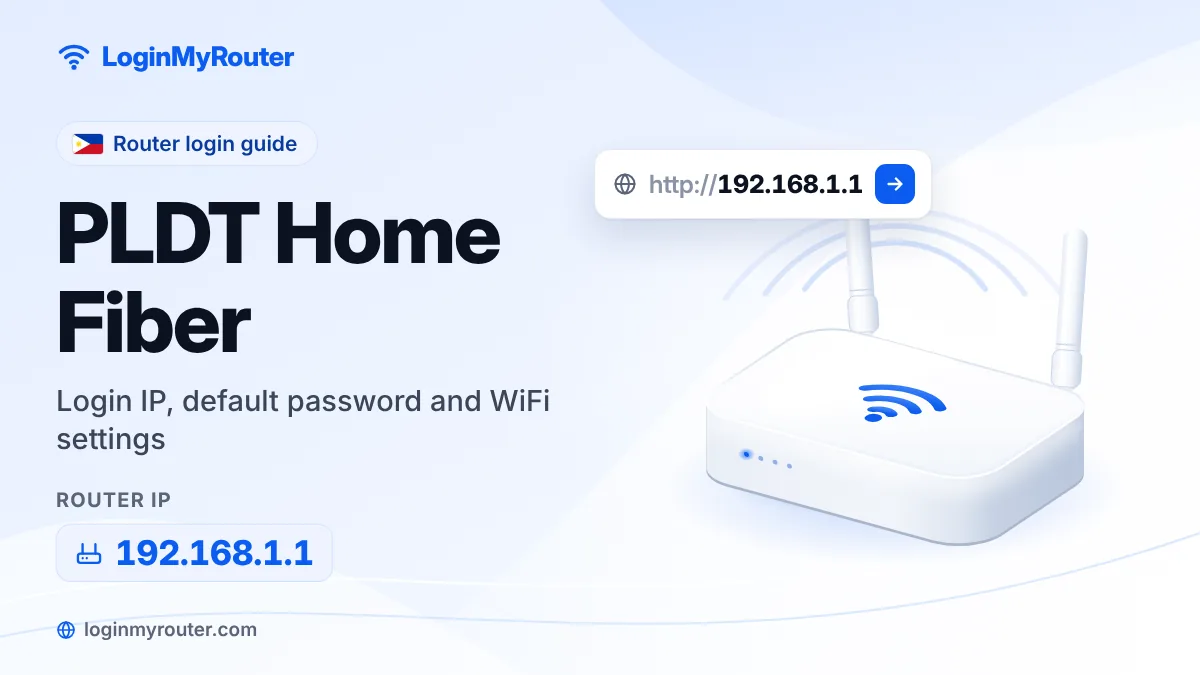
PLDT router login is done at http://192.168.1.1 on the fiber modem PLDT installed in your home. Connect to the PLDT WiFi, type the address in your browser and sign in with the username and password printed on the modem's sticker. That label is also where you'll find the default WiFi name and password, which are a different pair.
This guide covers the steps people search for most: finding the PLDT admin password, changing the WiFi name and password on both bands, seeing who is connected and resetting without losing your connection.
How to log in
- Connect your phone or laptop to the PLDT WiFi, or use a LAN cable from the modem.
- Find the sticker on the back or bottom of the modem and note the login username and password (not the WiFi password).
- Open a browser and type http://192.168.1.1 in the address bar.
- Enter the username and password from the sticker and log in.
- If 192.168.1.1 doesn't load, check your phone's WiFi details for the Gateway address; if you have your own router, its address is different.
Not working? Check the label on the back or bottom of your router.
How to change the WiFi password
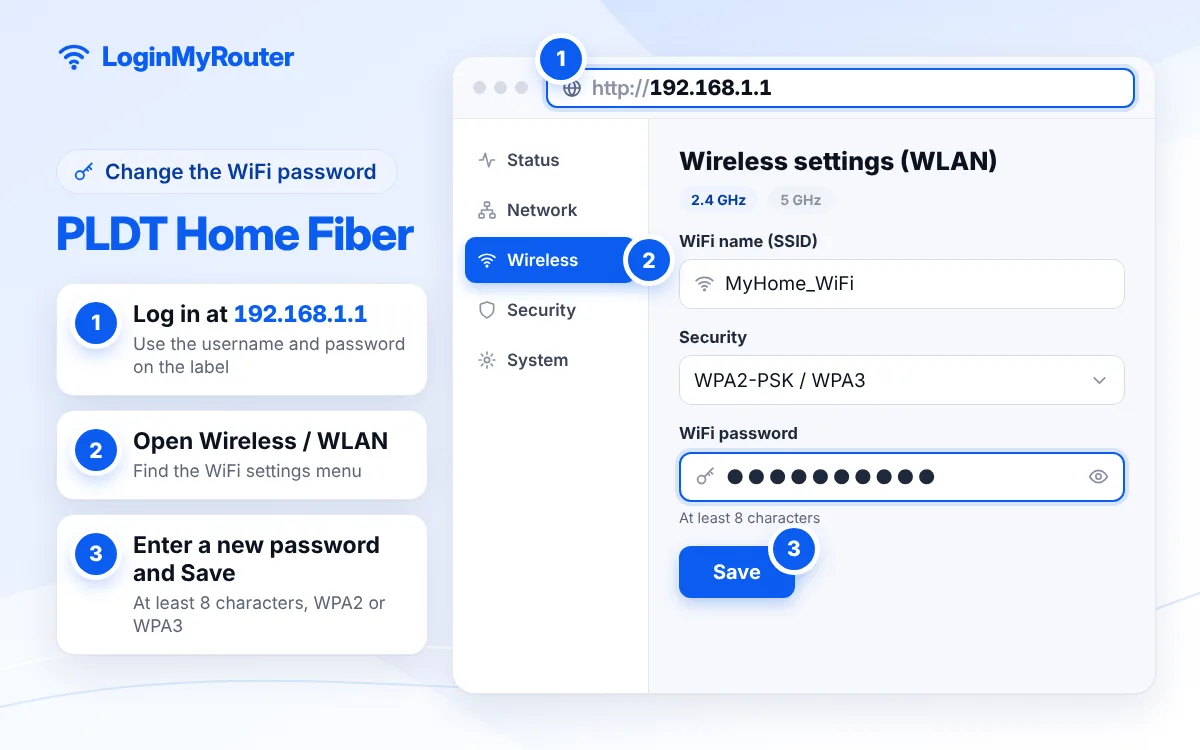
- Log in to the PLDT modem at 192.168.1.1.
- Open the WiFi settings; depending on the modem brand the menu is called WLAN, Wireless or Network > WLAN.
- Select the 2.4 GHz network. Change the WiFi name (SSID) if you like.
- Keep security on WPA2-PSK (or WPA2/WPA3) with AES.
- Type the new password in the field labelled WPA PreSharedKey, Passphrase or Password, then click Apply or Save.
- Open the 5 GHz settings and repeat, then reconnect your phones, TV and laptops.
Change the default admin password as soon as you're in.
PLDT admin password: where to find it
The login details for the modem's settings page are printed on its label, together with the default WiFi details. If the sticker is faded or missing, contact PLDT rather than trying passwords from the internet. You may see “secret” admin usernames shared online; skip them. They are outdated or meant for PLDT technicians, and repeated wrong attempts can lock the login page.
PLDT router login: common problems
- Page won't load: confirm you're on the PLDT WiFi, switch off mobile data and type
http://192.168.1.1exactly. Our 192.168.1.1 guide covers more fixes. - Wrong password: use the login pair on the sticker, not the WiFi password.
- Changed password but nothing changed: you may have edited only the 2.4 GHz network, or your phone is joined to a mesh unit or your own router.
See who is connected
Most PLDT modems list connected devices on a status page, usually under Status, Device Info or a WLAN or DHCP client list. Each entry shows a device name and MAC address. Changing the WiFi password disconnects everyone at once; many modems also let you block a single device with a MAC filter in the WLAN settings.
Resetting a PLDT modem
Try a simple restart first: switch the modem off, wait 30 seconds and switch it on again. A factory reset (hold the reset pinhole for about 10 seconds) brings back the sticker login and WiFi details, but on a fiber modem it may also remove settings PLDT applied. If you're not sure, contact PLDT before resetting.
When to contact PLDT
Report the problem to PLDT if the LOS light is red, the PON light keeps blinking, or the internet stays down after a restart. These are line problems that no setting on 192.168.1.1 can fix. Use the support and report-an-issue pages on pldthome.com, where you can also track an existing request and log in to your account. If you use the PLDT WiFi mesh system, its settings may be handled separately from the modem. More providers are on our Philippines hub.
Security tips
- Change the modem's admin password from the default, not just the WiFi password.
- Don't use your birthday, mobile number or address as the WiFi password.
- Switch off WPS if you don't use it, and give visitors a guest network if the modem offers one.
Frequently asked questions
What is the PLDT router login address?
http://192.168.1.1 for PLDT Home Fiber modems. If it doesn't open, check the Gateway shown in your phone's WiFi details.
What is the PLDT admin password?
It is printed on the sticker on your modem. PLDT modems carry their own login details, so we don't list a universal password.
How do I change my PLDT WiFi password on my phone?
Join the PLDT WiFi, open http://192.168.1.1, log in with the sticker details, open WLAN settings, type the new password, tap Apply and repeat for 5 GHz.
Why do I see two PLDT WiFi names?
Dual-band modems broadcast a 2.4 GHz network for range and a 5 GHz network for speed. Each has its own password field.
I typed the admin password wrong several times. What now?
Wait a few minutes before trying again. Some modems block the login after repeated failures.
Should I factory reset my PLDT modem?
Only if you've forgotten the admin password and a restart didn't help. Contact PLDT first, as a reset can remove provider settings.