 Pakistan · Provider
StormFiber Router Login Guide
- Login URL
http://192.168.1.1- Default username
- Printed on the label of your StormFiber device
- Default password
- Printed on the label (separate from the WiFi password)
- Other possible IPs
- 192.168.18.1
StormFiber router login is done on the fiber modem the installer left in your home. StormFiber is a fiber-to-the-home service, so that box is a GPON unit (an ONT with WiFi built in). Depending on its brand, its settings page opens at http://192.168.1.1 or http://192.168.18.1, and the login details are printed on the device's own label.
Below you'll find how to sign in, how to change your Storm Fiber WiFi password and name on both bands, how to see connected devices, and why you should think twice before pressing reset on a fiber box.
How to log in
- Connect your phone or laptop to the StormFiber WiFi, or use a LAN cable from one of the device's LAN ports.
- Look at the label on the bottom or back of the device and note the brand, the login address and the username/password for the web page.
- Open a browser and type http://192.168.1.1. If it does not load, try http://192.168.18.1, which many newer Huawei units use.
- Enter the username and password from the label. Huawei units lock the login for a minute after three wrong tries, so type carefully.
- The status page opens. If you see a different brand's page than expected, you may be connected to your own router instead of the StormFiber device.
Not working? Check the label on the back or bottom of your router.
How to change the WiFi password
- Log in to the StormFiber device as above.
- Open the WiFi settings: on Huawei units this is usually WLAN (sometimes inside Advanced), then the basic WLAN settings page; on FiberHome and similar units look under Network.
- Pick the 2.4 GHz network first. Change the WiFi name (SSID) if you want a new one.
- Keep security on WPA2-PSK (or WPA2/WPA3) with AES.
- Enter the new password in the field named WPA PreSharedKey, Pass Phrase or Password, then click Apply.
- If the device is dual-band, open the 5 GHz settings and repeat, then reconnect all your devices with the new password.
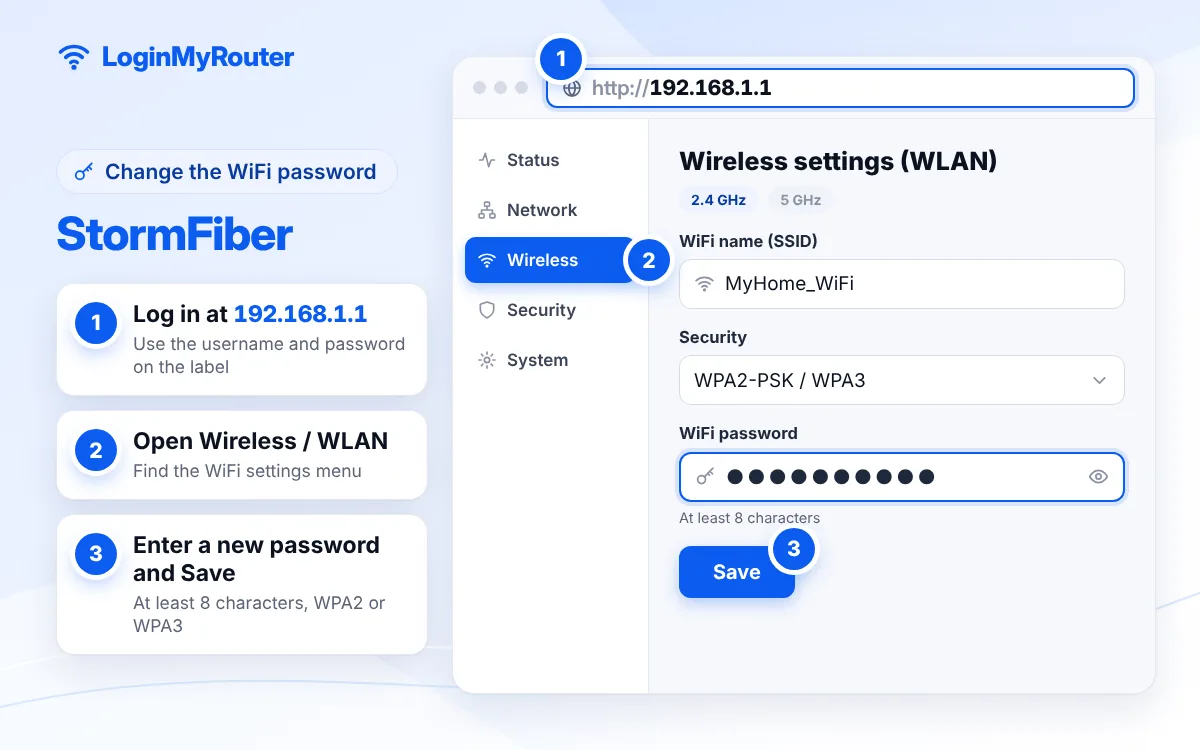
Change the default admin password as soon as you're in.
StormFiber router login: which address is yours?
StormFiber has used more than one equipment brand, so the label is the most reliable guide. As a rule of thumb:
| What the label shows | Address to try first |
|---|---|
| Newer Huawei unit | 192.168.18.1 |
| Other brands, or no address shown | 192.168.1.1 |
| Your own TP-Link / Tenda router added behind it | 192.168.0.1 (that router's page) |
Our address guides for 192.168.1.1 and 192.168.18.1 cover each one in detail, and the fiber ONT guide explains Huawei and ZTE fiber menus.
Why do I see two StormFiber WiFi names?
Dual-band devices broadcast a 2.4 GHz network (longer range, slower) and a 5 GHz network (faster, shorter range), often with “5G” added to the name. Each has its own password field. Change both, or give both the same name and password if you prefer one network to show up on your phone.
Find connected devices
After logging in, look for a page called User Device Information, Device List or DHCP Clients, usually under Status. It lists each phone, TV and laptop with its MAC address. Unknown entries are a good reason to change the WiFi password straight away; the device page may also let you block a single MAC address.
Resetting a StormFiber device
A pinhole reset (hold for about 10 seconds) returns the login and WiFi details to what is on the label. On a fiber unit it can also erase settings made during installation, and the internet may not come back until StormFiber reconfigures it. Try a simple power restart first, and contact StormFiber before a full reset.
When to contact StormFiber
A red or blinking LOS light on the fiber unit means the fiber signal is not reaching your home, and only the provider can fix that. The same goes for a broken fiber cable, a device that won't power on, or a connection that stays down after a restart. Use the support channels listed on the official site, stormfiber.com. For other providers, see our Pakistan hub.
Security tips
- Change the web-page password from the default on the label, not only the WiFi password.
- Use WPA2 or WPA3; never leave the network open or on WEP.
- Turn off WPS unless you really use it.
- Ignore online lists of “master” passwords for fiber units; they are often meant for technicians and can lock you out.
Frequently asked questions
What is the StormFiber router IP address?
Usually 192.168.1.1. Many newer Huawei units use 192.168.18.1. The exact address is printed on the device label.
What is the default StormFiber username and password?
They are printed on the label of the device StormFiber installed. Because units differ, we don't list a universal pair; if the label is missing, ask StormFiber support.
How do I change my Storm Fiber WiFi password on mobile?
Connect to the WiFi, open http://192.168.1.1 (or 192.168.18.1) in Chrome, log in with the label details, open the WLAN or WiFi settings, enter the new password and tap Apply. Repeat for the 5 GHz network.
The login page says my account is locked. What should I do?
Huawei units lock the login for about a minute after three wrong attempts. Wait, then try again carefully with the label details.
I changed the password but my phone still connects with the old one. Why?
You probably changed only one band, or you have your own router behind the StormFiber device. Change the password on the network your phone actually joins.
Should I factory reset my StormFiber device?
Only as a last resort. A reset can remove the setup the installer made. Restart it first, and talk to StormFiber before resetting.